
Developer Release and Deployment Guide
Local development → repository → staging → testing → production
1. Approved Release Flow
- Develop and test changes locally.
- Commit source changes to
main. - Update
manifest.jsonand commit the release. - Push a final version tag.
- GitHub Actions builds one immutable ZIP/checksum pair as a prerelease.
- Staging independently installs and tests that prerelease.
- Promote the same GitHub Release by clearing only its prerelease flag.
- Production independently installs the same asset.
Never: copy files from staging to production, rebuild during promotion, create a second production tag for the same release, or use Plesk Git deployment to install a release being tested through System Update.
2. New Server Installation
Complete this section once for every new staging or production installation. The updater cannot install its own missing foundation, so the initial application and System Update files must be deployed through Plesk Git.
2.1 Register the Plesk SSH deploy key
- In Plesk, open the domain and create a Git repository from a remote repository.
- Use repository URL
git@github.com:Andrew374e1/ProjectForge-WMS.git. - Create or choose a Plesk SSH key.
- Copy the complete value shown under SSH public key content.
- In the GitHub repository, open Settings, Deploy keys, and Add deploy key.
- Use an environment-specific title such as
Project Forge WMS - Production Plesk. - Paste the public key and leave write access disabled.
- Return to Plesk and finish creating the repository.
Key security: register only the public key. Never copy, publish, or commit the corresponding private key. Use separate deploy keys for staging and production.
2.2 Configure the Plesk repository
Repository type | Remote repository |
|---|---|
Active branch |
|
Deployment path |
|
Deployment mode | Manual |
Post-deploy actions | Disabled |
Fetch the repository and perform one controlled manual deployment to install the application and updater foundation. Keep deployment mode manual afterward. Routine releases must be installed through System Update.
2.3 Configure PHP in Plesk
- In Plesk, open the environment domain.
- Open PHP Settings.
- Enable PHP support.
- Use the tested PHP version, currently
8.5. The application manifest requires PHP8.3or newer. - Set Run PHP as to FPM application served by nginx.
- Set
short_open_tagtoon. - Confirm the
curl,mysqli, andzipextensions are available. - Apply the PHP settings before testing login or System Update.
Required handler: do not use a different PHP handler for this installation. Incorrect handler settings can produce different routing behavior, including POST requests being redirected to extensionless GET requests.
sudo plesk bin domain --show-php-settings ENVIRONMENT_DOMAIN |
  grep -iE 'short_open_tag|open_basedir'
Replace ENVIRONMENT_DOMAIN with the exact staging or production domain. The output must show short_open_tag = on.
2.4 Create the application database configuration
Create the environment-specific application configuration in the APP_ROOT/httpdocs/includes directory. The filename is config.php. This file supplies the database connection used by the website, login, background jobs, integrations, and System Update.
The configuration must define the values expected by the existing WMS bootstrap:
define('DB_HOST', 'DATABASE_HOST');
define('DB_USER', 'DATABASE_USERNAME');
define('DB_PASS', 'DATABASE_PASSWORD');
define('DB_NAME', 'DATABASE_NAME');- Replace every placeholder with the credentials for that environment.
- Production must use the production database. It must never point to the staging database.
- Staging must use the staging database.
- Never commit this file or include its contents in documentation, tickets, chat, screenshots, or logs.
- Keep the file protected from release replacement and managed-file deletion.
- Recommended file mode is
0640, readable by the website user and its subscription group.
APP_ROOT=/var/www/vhosts/ENVIRONMENT_DOMAIN
SITE_USER=$(stat -c '%U' "$APP_ROOT/httpdocs")
SITE_GROUP=$(stat -c '%G' "$APP_ROOT/httpdocs")
CONFIG_DIR="$APP_ROOT/httpdocs/includes"
DB_CONFIG=$(printf '%s/%s' "$CONFIG_DIR" "config.php")

sudo chown "$SITE_USER:$SITE_GROUP" "$DB_CONFIG"
sudo chmod 0640 "$DB_CONFIG"
Credential verification: confirm the database host and database name before login testing. Do not print or expose the database password.
2.5 Create a GitHub token for System Update
Create a fine-grained personal access token for each environment. This token is separate from the Plesk SSH deploy key: Plesk Git uses SSH for the initial repository deployment, while System Update uses the token to read private GitHub Releases and download their assets.
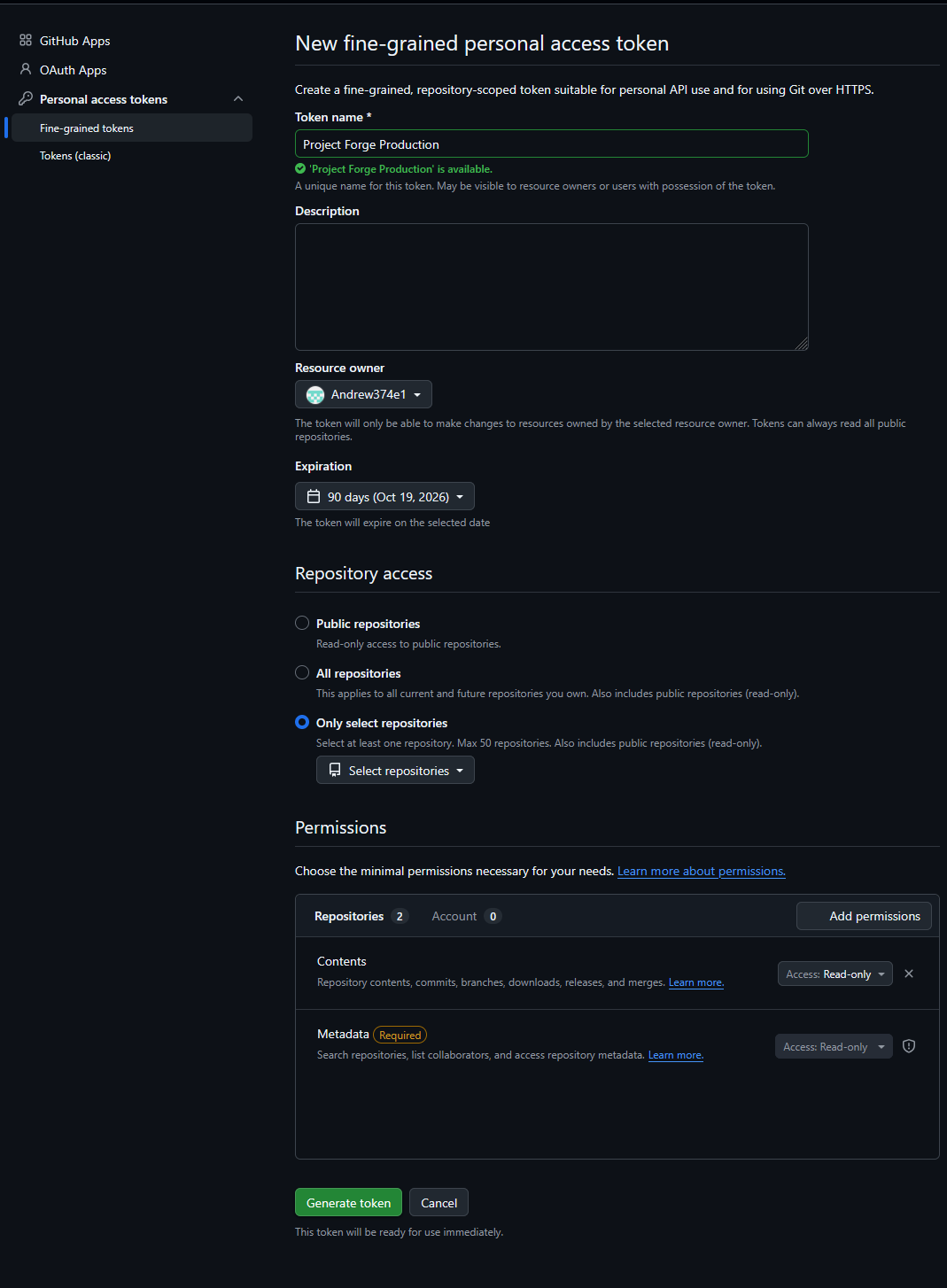
The example above shows the production token limited to the Project Forge repository, with Contents and required Metadata permissions set to read-only. Click the image to open the full-size version.
- Sign in to the GitHub account that can read
Andrew374e1/ProjectForge-WMS. - Open the profile menu, then Settings.
- Open Developer settings.
- Open Personal access tokens, then Fine-grained tokens.
- Click Generate new token.
- Enter an environment-specific name such as
Project Forge WMS - Production Updater. - Set an expiration date that follows company credential-rotation policy.
- Set the resource owner to
Andrew374e1. - Limit repository access to
ProjectForge-WMSonly. - Under repository permissions, set Contents to Read-only. GitHub supplies required metadata read access automatically.
- Leave every unrelated permission at its default no-access value.
- Generate the token and copy it immediately. GitHub displays the complete token only once.
- Store it directly in the environment's private
config/system_update.phpfile.
Token security: never paste a real token into kbase, tickets, chat, terminal history, screenshots, application logs, or Git. Use separate staging and production tokens so either environment can be revoked independently.
Official reference: Managing personal access tokens on GitHub.
Validate the token without displaying it
read -rsp "GitHub token: " GITHUB_TOKEN
echo

curl --silent --show-error \
  --header "Accept: application/vnd.github+json" \
  --header "Authorization: Bearer $GITHUB_TOKEN" \
  --header "X-GitHub-Api-Version: 2022-11-28" \
  --write-out "HTTP_STATUS=%{http_code}\n" \
  https://api.github.com/repos/Andrew374e1/ProjectForge-WMS

unset GITHUB_TOKEN
A valid token returns repository metadata and HTTP_STATUS=200. A private repository commonly returns 404 when the token is invalid, expired, assigned to the wrong owner, or missing repository access.
2.6 Create the private channel configuration
Create the file outside httpdocs.
Environment | Exact path | Channel |
|---|---|---|
Staging |
|
|
Production |
|
|
The staging file returns this array:
return [
    'channel' => 'staging',
    'github_token' => 'STAGING_GITHUB_TOKEN',
];
The production file returns this array:
return [
    'channel' => 'production',
    'github_token' => 'PRODUCTION_GITHUB_TOKEN',
];- Use a fine-grained token limited to
Andrew374e1/ProjectForge-WMSwith Contents read access. - Never place the token under
httpdocsor commit it to Git. - Set file mode
0640and ownership that allows web PHP and the scheduled worker to read it. - A valid
PROJECT_FORGE_UPDATE_CHANNELenvironment value takes precedence over the private file. - The hostname, Git branch, Plesk repository, and manifest do not determine the channel.
Release filtering: staging accepts prereleases and stable releases. Production rejects drafts and prereleases and accepts stable releases only.
2.7 Create private updater storage
APP_ROOT=/var/www/vhosts/ENVIRONMENT_DOMAIN
DOCROOT="$APP_ROOT/httpdocs"
UPDATE_STORAGE="$APP_ROOT/storage/system_updates"
SITE_USER=$(stat -c '%U' "$DOCROOT")
SITE_GROUP=$(stat -c '%G' "$DOCROOT")

sudo install -d -o "$SITE_USER" -g "$SITE_GROUP" -m 0750 \
  "$APP_ROOT/storage" \
  "$UPDATE_STORAGE" \
  "$UPDATE_STORAGE/downloads" \
  "$UPDATE_STORAGE/extracted" \
  "$UPDATE_STORAGE/backups" \
  "$UPDATE_STORAGE/locks" \
  "$UPDATE_STORAGE/logs"
Replace ENVIRONMENT_DOMAIN with the exact staging or production domain. Storage must remain outside httpdocs.
2.8 Configure the scheduled worker
- In Plesk Scheduled Tasks, use task type Run a PHP script.
- Script path:
schedulescripts/system_update.php. - PHP version:
8.5. - Schedule: every minute.
- Run as the website subscription user.
Do not use Run a command. The Plesk chroot command environment may not contain the required PHP executable.
2.9 Verify the installation
- Confirm the System Update page displays the correct environment channel.
- Confirm PHP runs as an FPM application served by nginx and
short_open_tagis on. - Confirm the application database configuration points to the correct environment database.
- Confirm the private configuration and updater storage resolve outside
httpdocs. - Confirm the website user can write to updater storage.
- Confirm PHP provides
curl,mysqli, andzip. - Run the scheduled task once and confirm it exits normally when no job is queued.
- Keep Plesk Git deployment mode set to manual.
3. One-Time Server Requirements
Requirement | Staging | Production |
|---|---|---|
Channel |
|
|
GitHub token | Fine-grained private-repository token with Contents read access. | |
PHP | PHP 8.3+; tested with Plesk PHP 8.5; FPM application served by nginx;
;
,
, and
. | |
Database config | Directory:
. Filename:
. It must be environment-specific, protected, and excluded from releases. | |
Private config |
, outside
, mode
. | |
Private storage |
, outside
, writable by website user. | |
Plesk Git | Manual deployment mode. | |
Worker | Plesk Run a PHP script ;
; PHP 8.5; every minute. | |
4. Manifest and Version Requirements
- Use semantic versions, for example
1.0.6. - Increase the numeric
buildfor every release. - The tag must be
vplus the exact manifest version. - Set release date and administrator-readable release notes.
- Change
database_versiononly when adding migrations. - Never edit a published release manifest or move an installed tag.
{
  "application": "Project Forge WMS",
  "version": "1.0.6",
  "build": 6,
  "release_date": "2026-07-21",
  "minimum_php": "8.3",
  "minimum_mariadb": "11.8",
  "database_version": "20260717_001",
  "release_notes": [
    "Describe the administrator-visible change.",
    "Describe important operational or security behavior."
  ]
}
5. Local Developer Commands
5.1 Start with a clean branch
cd C:\Development\wms
git status --short
git branch --show-current
git pull --ff-only
Use main. Resolve unrelated changes before release preparation.
5.2 Review edits
git status --short
git diff
git diff -- path\to\specific-file.php
5.3 Validate
C:\xampp\php\php.exe -l path\to\changed-file.php
C:\xampp\php\php.exe httpdocs\modules\system_update\tests\system_update_tests.php
Syntax-check every changed PHP file and require all relevant tests to pass.
5.4 Add, review, commit, and push development changes
git add path\to\changed-file.php path\to\another-file.js
git status --short
git diff --cached
git commit -m "Describe the implemented change"
git push origin main
Use explicit paths. Review staged changes before committing and preserve unrelated work.
6. Prepare and Publish the Release
6.1 Commit the manifest
git diff -- httpdocs/manifest.json
git add httpdocs/manifest.json
git diff --cached
git commit -m "Release v1.0.6"
git push origin main
6.2 Verify before tagging
git status --short
git log -2 --oneline
The worktree must be clean and the release commit must already appear on origin/main.
6.3 Tag the release commit
git tag -a v1.0.6 -m "Project Forge WMS v1.0.6"
git push origin v1.0.6
git show v1.0.6 --no-patch --format=fuller
6.4 Verify GitHub Actions and assets
The release workflow must succeed and create a prerelease with exactly:
project-forge-wms-v1.0.6.zip
project-forge-wms-v1.0.6.sha256
If the workflow fails, fix the workflow or code; do not manually create an incomplete Release.
7. Correcting an Unpublished Bad Tag
Replace a tag only when no valid Release/assets exist and no server consumed it.
git ls-remote --tags origin refs/tags/v1.0.6
git push origin --delete v1.0.6
git tag -d v1.0.6

# Correct and commit first, then recreate:
git tag -a v1.0.6 -m "Project Forge WMS v1.0.6"
git push origin v1.0.6
Published or installed tag: never move it. Publish a new version and build.
8. Staging Installation and Testing
- Confirm Plesk Git mode is manual; do not deploy the repository.
- Open staging System Update and click Check for Updates.
- Verify local/remote version and build, channel
staging, tag, requirements, and migrations. - For migrations, create and verify an external database backup.
- Click Update exactly once.
- The Plesk PHP scheduled task claims the queued job.
- Wait for status
doneand phasecomplete.
downloadverifyextractpreflightbackupinstallmigratepost-updatecleanupcomplete
APP_ROOT=/var/www/vhosts/staging.wms.thethreelogistics.com

grep -E '"version"|"build"' "$APP_ROOT/httpdocs/manifest.json"
ls -lt "$APP_ROOT/storage/system_updates/logs"
sed -n '1,300p' "$APP_ROOT/storage/system_updates/logs/JOB_ID.log"
ls -l "$APP_ROOT/config/system_update.php"
Required staging tests
- Installed manifest exactly matches the candidate version/build.
- A new update check no longer offers the installed release.
- Login, permissions, navigation, layouts, and target modules render.
- Critical WMS workflows and background jobs succeed.
- Uploads, attachments, private config, and protected paths are unchanged.
- Job log confirms checksum verification and completion.
9. Record Staging Approval
Tag and commit | Exact tag and full commit SHA |
|---|---|
Artifact | ZIP filename and SHA-256 |
Job | Staging job ID and completion time |
Database backup | Backup ID/time when migrations exist |
Testing | Tester, results, issues, and approval time |
10. Promote Without Rebuilding
- Open the existing tested GitHub Release.
- Edit it and clear Set as a pre-release.
- Save without changing the tag or assets.
Immutability gate: tag, commit, ZIP bytes, filename, and SHA-256 must remain identical to staging.
11. Production Deployment
11.1 Readiness
- Production channel is
production. - Updater foundation and private storage are already installed and tested.
- Plesk task is Run a PHP script, PHP 8.5, every minute.
- Plesk Git automatic deployment is disabled.
- Application and database backups are current and recoverable.
- Monitoring, maintenance window, and responsible operators are ready.
11.2 Install and verify
- Click Check for Updates.
- Confirm channel, stable tag, version, build, requirements, and checksum identity.
- Confirm backups and click Update once.
- Monitor until
done/complete. - Verify manifest, log, protected paths, health, and business workflows.
APP_ROOT=/var/www/vhosts/production.example.com

grep -E '"version"|"build"' "$APP_ROOT/httpdocs/manifest.json"
ls -lt "$APP_ROOT/storage/system_updates/logs"
sed -n '1,300p' "$APP_ROOT/storage/system_updates/logs/JOB_ID.log"
12. Failure Rules
- Do not repeatedly click Update; inspect the existing job and its log.
- Do not move the tag or replace assets after consumption.
- Correct a failed candidate by publishing a new version/build.
- Before migration, verify automatic file rollback results.
- During/after migration, stop and use the external database recovery plan.
- Preserve logs, inventory, checksum, tag, and commit as incident evidence.
13. Final Checklist
- Changes reviewed; syntax and tests pass.
- Manifest version/build/date/notes are correct.
- Release commit is on
origin/main. - Tag points to that release commit.
- GitHub prerelease and both custom assets exist.
- Staging installs and validates the exact artifact.
- Release is promoted by metadata only.
- Production readiness and backup gates pass.
- Production installs and validates the same immutable artifact.
No comments to display
No comments to display